
We send PDF documents such as tax returns and financial statements for signing through JL Partners electronic signing. There is nothing to install and no account to create. You open the link in our email, confirm a code, and sign. It works the same way on a phone or a computer.
Engagement letters and Authority to Act forms follow the same steps (link, code, sign). The only difference is that the document appears as text on the page rather than as a PDF.
✅ Step 1: Open the link in the email
Our signing emails look like this:
- From: JL Partners (noreply@jlpartners.co.nz)
- Subject: JL Partners — please sign: (document name)
- The link starts with https://www.jlpartners.co.nz/sign/
The email lists the documents to sign and the date the link expires.
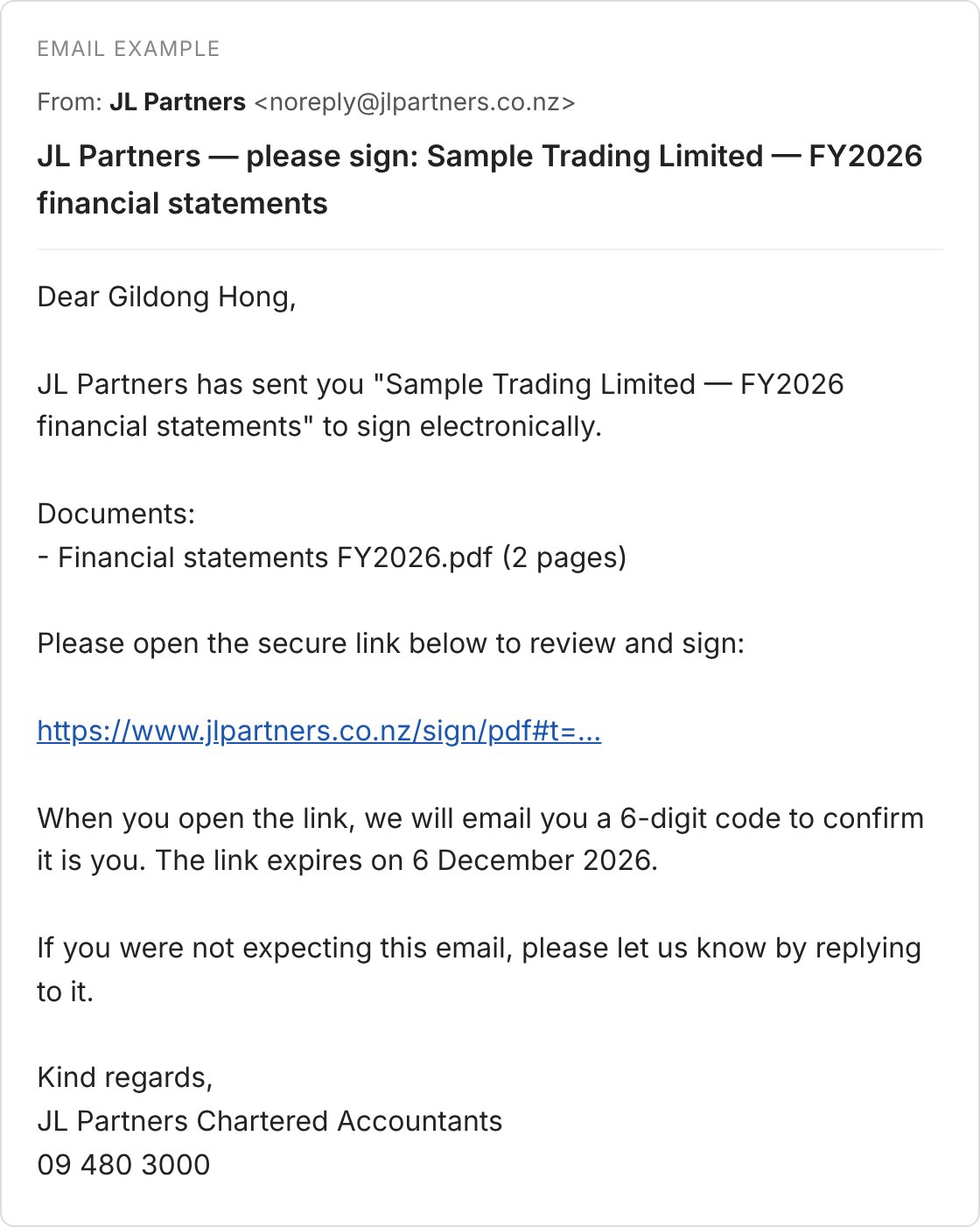
Example signing request (fictional name and documents)
If you receive a signing request you were not expecting, please do not open the link. Reply to the email or call us on 09 480 3000.
✅ Step 2: Select ‘Email me a code’
The page shows the document name and the name of the person signing. To confirm it is you, select Email me a code. We will send a 6-digit code to the email address the request was sent to.
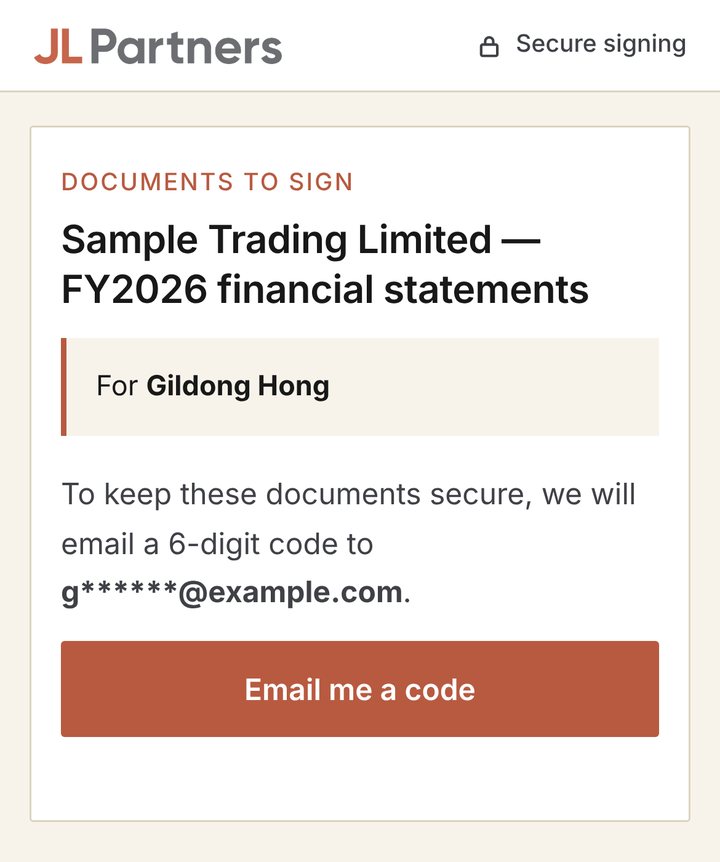
✅ Step 3: Enter the code
Open the email titled Your JL Partners verification code, enter the 6 digits and select Verify code.
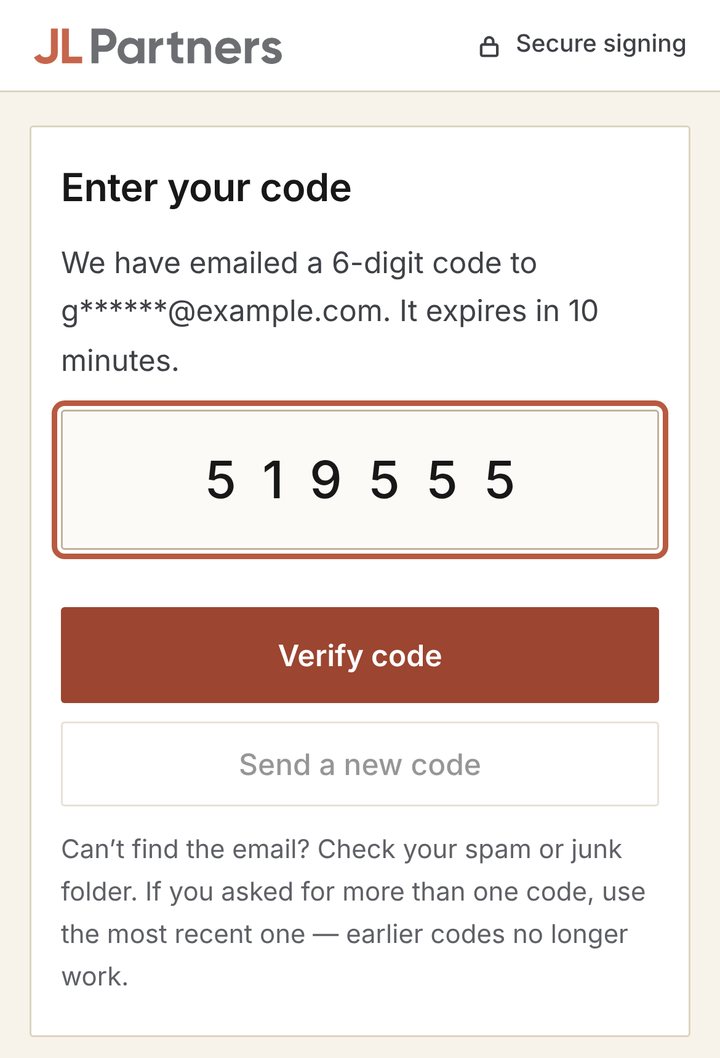
- The code works for 10 minutes. If it has expired, select Send a new code.
- If you asked for more than one code, only the most recent one works.
- Can’t find the email? Check your spam or junk folder.
- Please do not share the code with anyone.
✅ Step 4: Read the documents
The documents open on screen. The dark bar at the top shows how many boxes are left (for example, 0 of 2 required fields completed). Next field takes you to the next box to complete.
Please read every page before you sign.
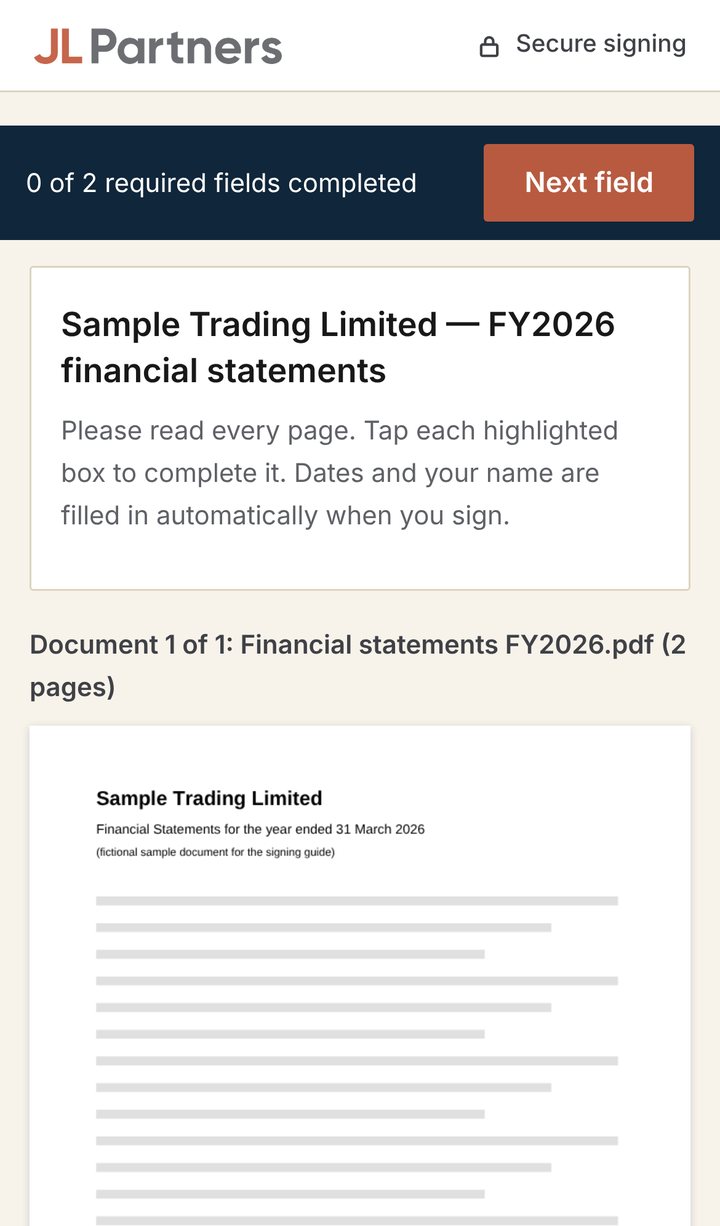
✅ Step 5: Sign
The orange boxes are the ones you need to complete. Boxes with a dashed border are optional. The date and your name are filled in automatically when you sign.
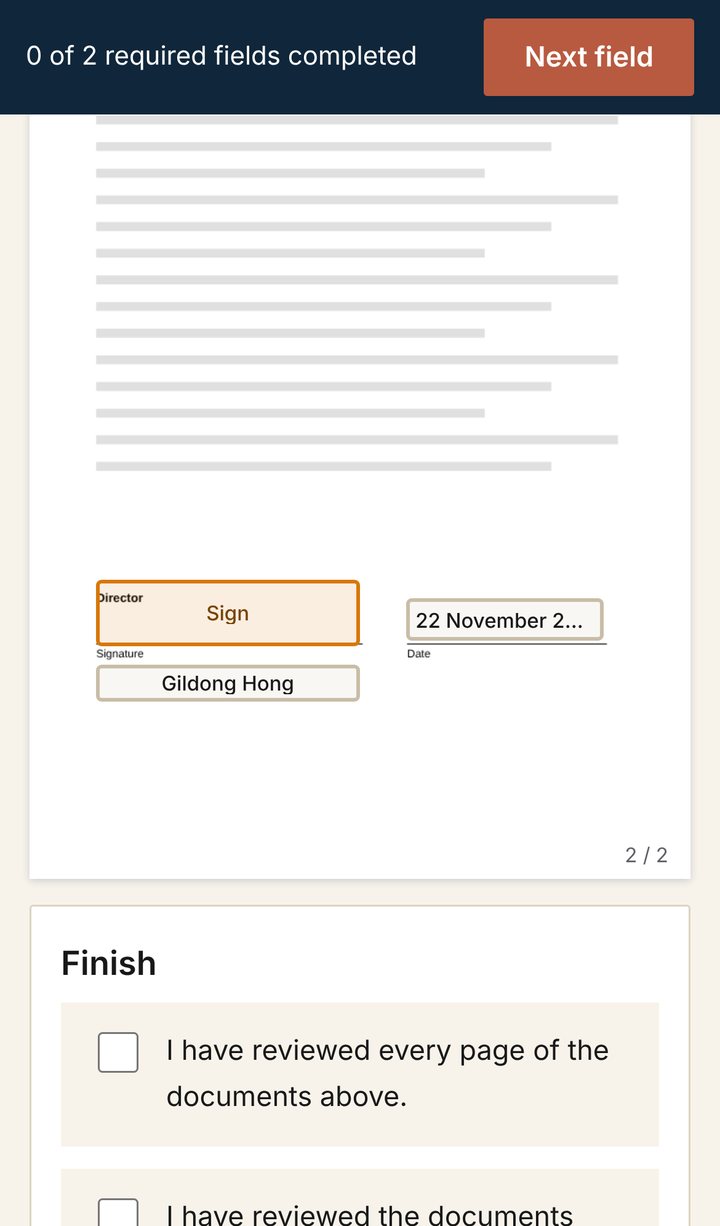
Tap an orange Sign box to open Draw your signature. Draw your signature with your finger or mouse, then select Adopt and sign.
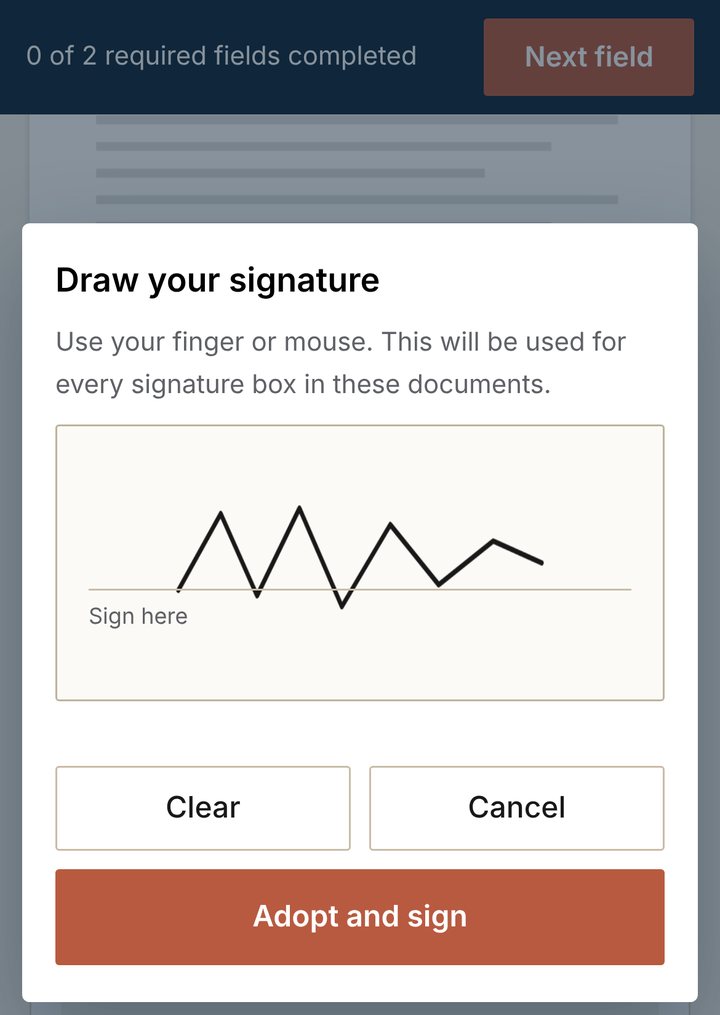
- Your signature is used for every signature box in these documents.
- For an Initials box, draw your initials the same way and select Adopt and initial.
- To redraw, select Change signature at the top.
- If there is a tick box or a short text box, tap it to tick it or type your answer.
- Signatures are drawn by hand. There is no option to type your name or upload a signature image.
Completed boxes lose their orange highlight.
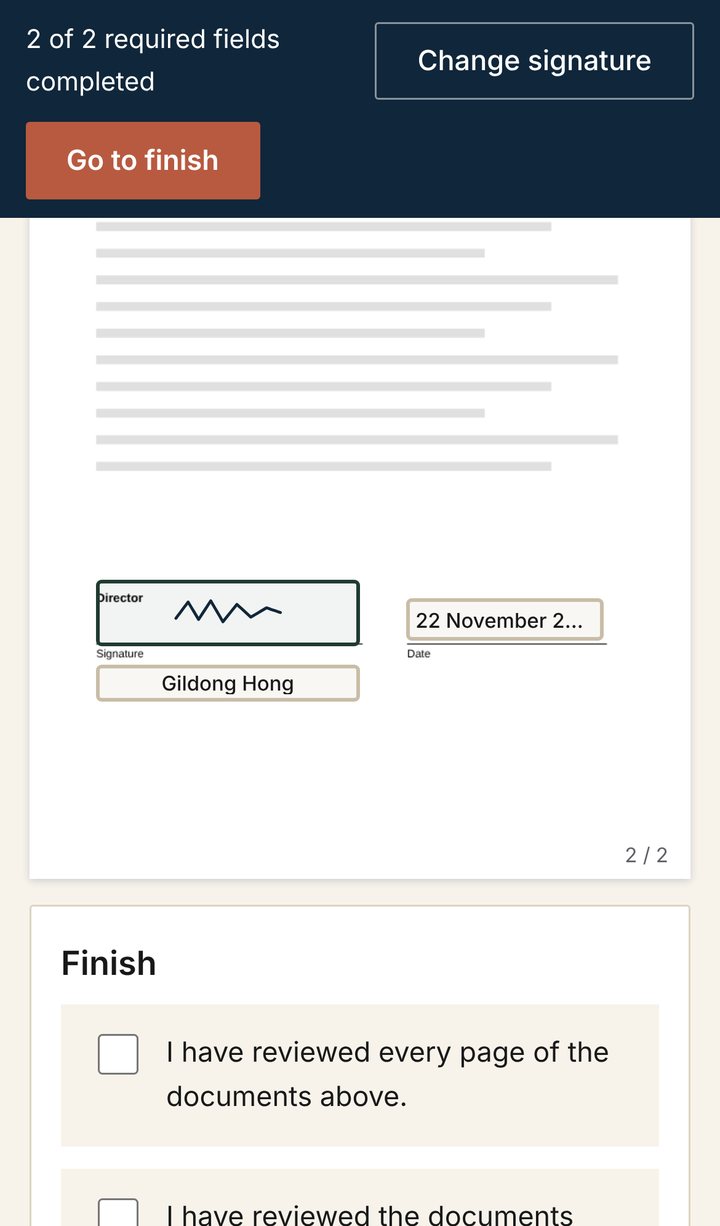
✅ Step 6: Select ‘Sign and finish’
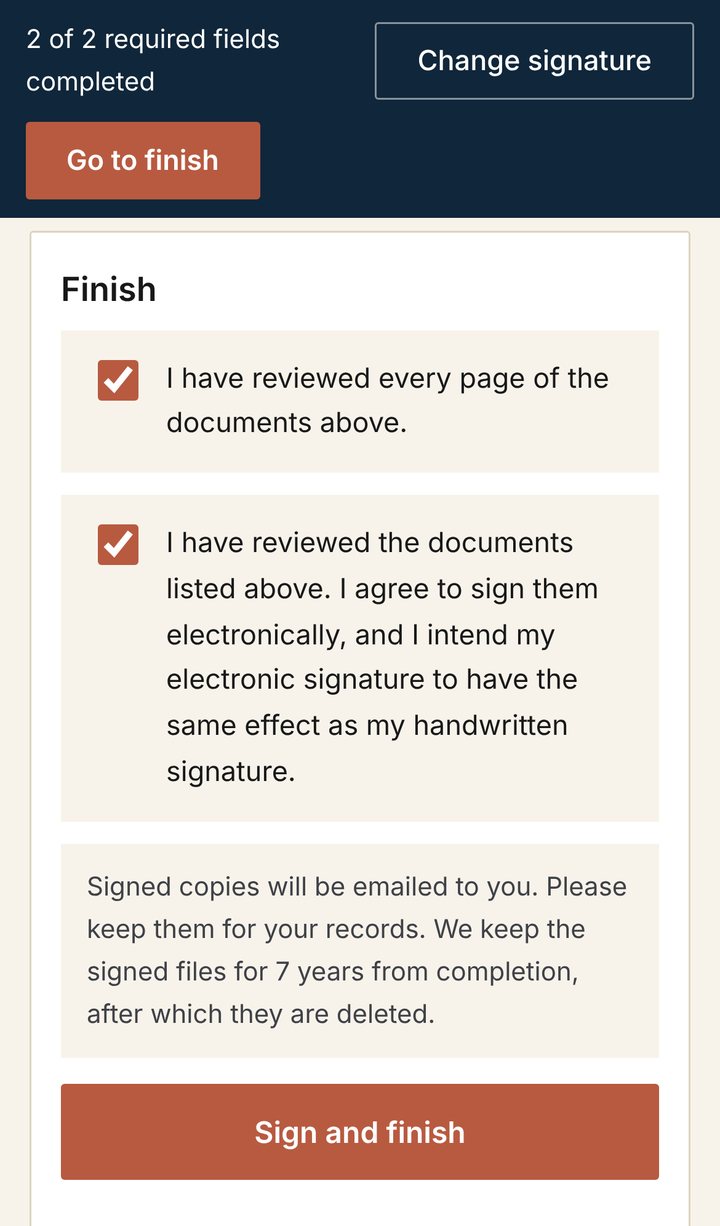
Select Go to finish at the top, or scroll to the end of the documents, to reach the Finish section. Tick both boxes:
- I have reviewed every page of the documents above.
- I have reviewed the documents listed above. I agree to sign them electronically, and I intend my electronic signature to have the same effect as my handwritten signature.
Then select Sign and finish.
✅ Step 7: Done
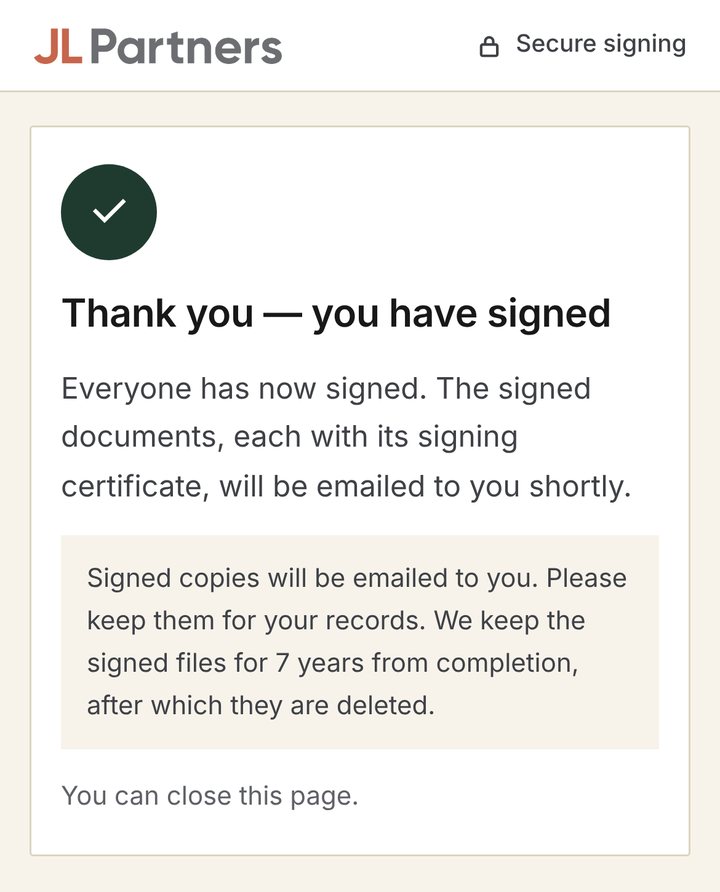
When you see Thank you — you have signed, you have finished. You can close the page.
📬 Your signed copy arrives by email
When everyone has signed, each signer and JL Partners receive an email titled JL Partners — signed: (document name) with the signed documents.
- Each signed file ends with a signing certificate showing who signed, when, and how their identity was confirmed.
- If the files are too large to attach, the email contains a download link instead. You will confirm a 6-digit code to open it, and the link works for 30 days.
- We keep the signed files for 7 years from completion, after which they are deleted. Please save your copy.
❓ Common questions
The page says ‘This link has expired’. The signing period has ended. Reply to our email or call us and we will send you a new link.
The page says ‘This link has been replaced by a newer one’. We have sent you a newer link. Please use the most recent email from JL Partners.
The page says ‘Your session has ended’. After you confirm your code, you have 60 minutes to finish. Open the link in the email again and request a new code. If you had not yet finished, you may need to complete the boxes again.
The page says ‘Too many incorrect attempts’. Select Send a new code to get a fresh code. You can request up to 5 codes an hour.
More than one person needs to sign. Each person receives their own email and signs separately. The signing page shows who else is signing (Also signing). Everyone receives the signed documents once all have signed.
Something in the documents looks wrong, or I do not want to sign. Please contact us before signing. If you decide not to sign, select Decline to sign below the Finish section and briefly tell us why. We will be notified and will contact you.
📞 Need help?
Email info@jlpartners.co.nz or call 09 480 3000. You can also reply directly to the signing request email.